 Sprite Fusion
Tilemap EditorEditor
Editor Overview
Learn about the Sprite Fusion interface.
Sprite Fusion is built around two work areas:
- The tileset panel for loading tilesets and selecting tiles
- The map canvas for placing tiles and editing the current map
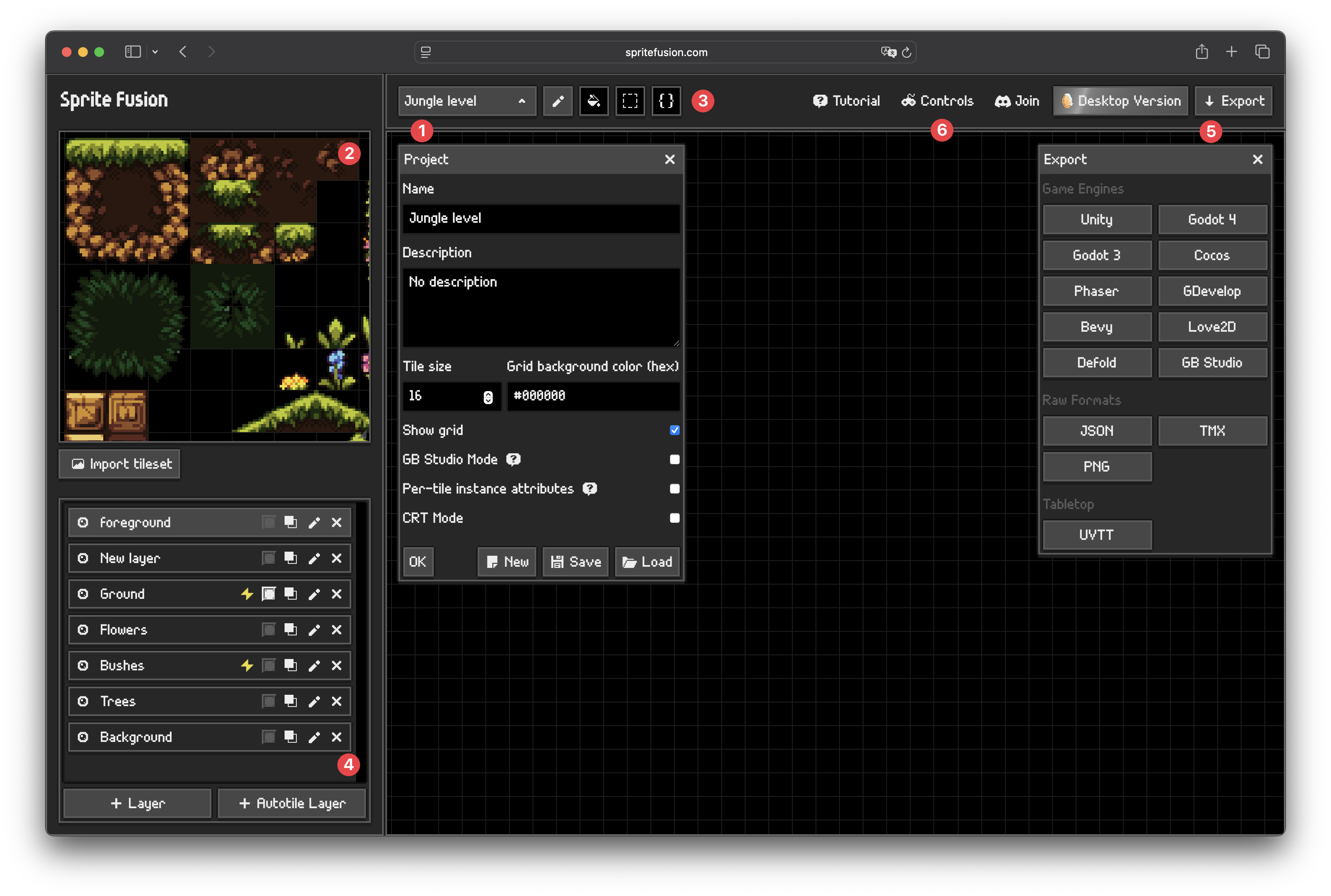
Interface
Project Panel (1)
The project panel is where you manage your project settings such as:
- Project name and description
- Tile size
- Grid visibility and grid background color
- Map size overlay
- GB Studio Mode
- Project save and load
Tileset Panel (2)
The tileset panel stores imported spritesheets and autotile tilesets. You use it to:
- Select one tile or a rectangular group of tiles
- Remove a tileset if it is not used in the map (right click on the tileset)
- Swap a tileset image with another image that has the exact same dimensions (right click on the tileset)
Tool Bar (3)
Sprite Fusion ships with four tools:

Pencil
Fill
Selection
Attributes
See Draw Modes for the detailed behavior of each one.
Layers Panel (4)
The layers panel lets you:
- Add regular or autotile layers
- Rename layers
- Duplicate layers
- Toggle layer visibility
- Toggle collision on a layer
- Reorder layers
See Layers and Collisions for more options and details.
Export Panel (5)
The export panel groups targets into:
- Game Engines
- Raw Formats (for custom engines)
- Tabletop software
See Export Overview and the individual export pages for target-specific limitations.
Undo, Redo, and Quick Actions
The editor supports undo and redo for map editing, quick save, and quick JSON export.
Ctrl/Cmd+Z: UndoCtrl/Cmd+Shift+Z: RedoCtrl/Cmd+S: Save project JSONCtrl/Cmd+Shift+S: Quick export to Sprite Fusion JSON
More shortcuts are available in the Controls panel (6), see Keyboard Shortcuts for the complete list.
Get the Desktop Version
- Works 100% offline
- Faster map exports
- One-time purchase
- Lifetime updates included

