 Sprite Fusion
Autotile System
Configure Sprite Fusion autotile layers, rules, default tiles, weighted variants, fill behavior, and reusable presets.
TL;DR
- Use

autotilelayers for connected terrain, walls, roads, water, cliffs, and similar shapes - Add randomness with variants and weights
- Save and reuse autotile rule sets
What Autotile Does
A regular layer places the exact tile you selected.
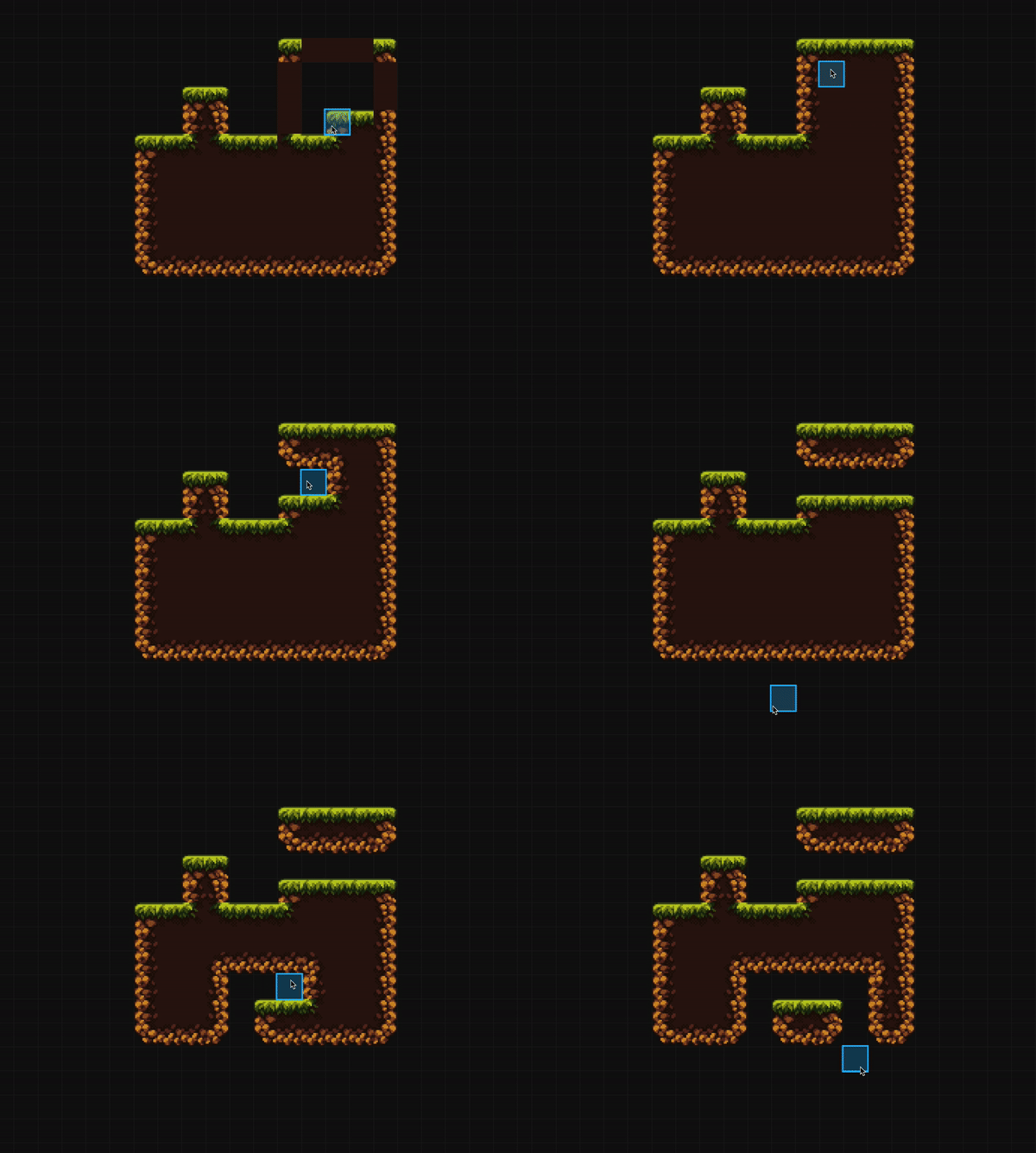
An autotile layer places the tile that best matches the surrounding cells.
That means you draw the shape, and Sprite Fusion resolves the correct center, edge, corner, or transition tile for each affected cell.
Setup
An autotile layer needs:
- At least one default tile
- One or more rules
- One or more variants for each rule when you want visual variation
Basic flow:
- Create or select an
autotilelayer - Add the default tile
- Add rules for edges, corners, gaps, and transitions
- Draw with

Pencilor
Fill - Optional: Save the setup as a preset if you want to reuse it later
Rules
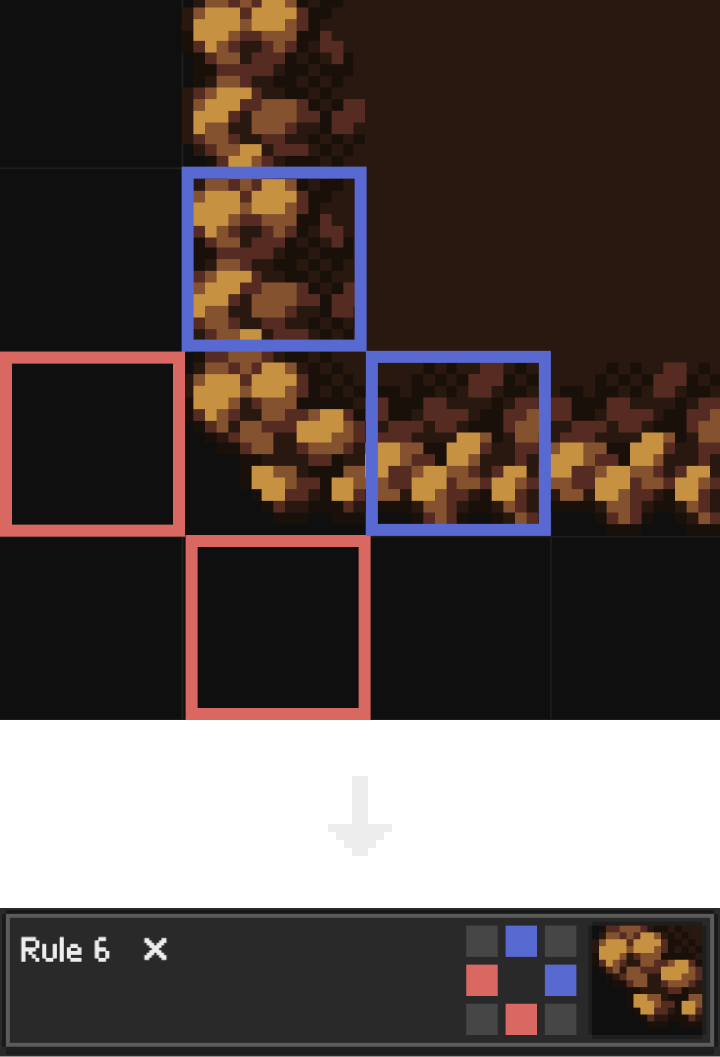
Each rule uses a 3 x 3 pattern around the tile being resolved.
Every cell in the pattern can mean:
| Cell state | Meaning |
|---|---|
| Required (blue) | A tile must exist there |
| Empty (red) | No tile must exist there |
| Ignored | This neighbor does not matter |
The center cell is the tile Sprite Fusion is choosing.
Default Tiles
Default tiles are the fallback tiles for an autotile layer.
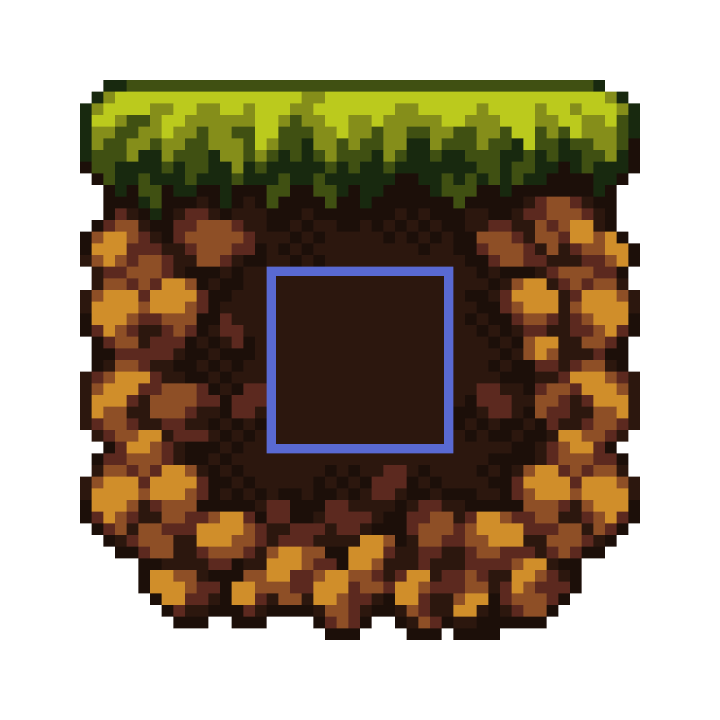
They are used when Sprite Fusion does not find a more specific rule for the current neighborhood.
Best for:
- The main interior tile of a terrain
- Random base decoration
- Simple autotile sets where only a few edge cases need rules
Randomization with variants and weights
Defaults and rules can both contain multiple variants.
Each variant has a weight. Higher weight means that variant is more likely to be picked when that default or rule is used.
Use weighted variants for:
- Breaking up repeated terrain
- Mixing several versions of the same edge
- Adding small detail without creating extra layers
Drawing Behavior
Pencil and Fill both work on autotile layers.
When you draw, erase, fill, or move content, Sprite Fusion recalculates the affected area so neighboring tiles keep matching the rules.
Import from providers
Sprite Fusion can load supported autotile packages from recognized providers:
retrodiffusionpixellab
These will automatically be loaded as an autotile layers fully setup and ready to use in Sprite Fusion.
Presets
Autotile rule sets can be saved and loaded as preset JSON files.
Use presets when you want to:
- Reuse the same terrain logic across projects
- Keep common rules for a tileset
- Share autotile setups with a team
When To Use A Regular Layer Instead
Use a regular layer when:
- Exact tiles matter
- Flip transforms matter
- You want full manual placement
- The visual result is not based on neighboring tiles
Get the Desktop Version
- Works 100% offline
- Faster map exports
- One-time purchase
- Lifetime updates included

